 MacHabits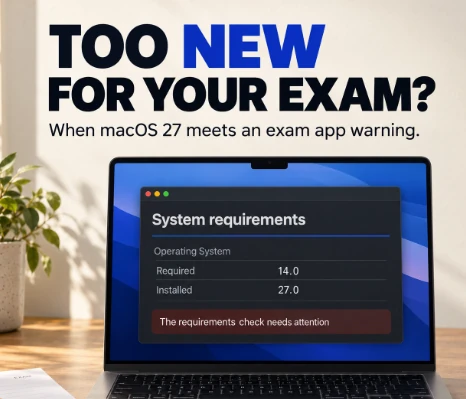
You updated your Mac to macOS 27, opened Examplify to check that everything is ready, and got a system requirements warning. The screen compares a required version with the one you have installed, and says the check needs attention. With an exam days away, that is a very bad moment to see it.
The warning doesn’t automatically mean you can’t sit the exam. What it means depends on which version of Examplify you have, which version your school or exam board uses, and whether Examplify lets you continue or sends you back to the dashboard. Here’s how to work out which situation you’re in, and what to do before exam day.
Why the warning appears
Examplify checks your Mac against ExamSoft’s Minimum System Requirements when it starts and again when you download an exam. ExamSoft certifies each new macOS release separately, and until a combination of macOS and Examplify has been certified, the check can flag it.
After a major macOS release, there is usually a gap of a few days to a few weeks where Apple’s update is available and your Examplify version, your school’s instructions, or ExamSoft’s requirements page haven’t caught up yet. Installing macOS 27 early puts you in that gap.
Warning or block: read the buttons
ExamSoft describes two outcomes when a device doesn’t fully meet requirements:
- You can choose Continue. This is a warning. Examplify recommends changes, but you can still use the device.
- You only see Return to Dashboard. This is a block. You can’t use this device for the exam until it meets the requirements.
Write down exactly what the message says and which buttons you see, or take a photo of the screen. You’ll need it if you contact your school or ExamSoft.
What ExamSoft says about macOS 27
In its release notes, ExamSoft states that its products are compatible with macOS 27 when you use Examplify 3.10.0 or 3.12.0, and that its requirements page has been updated to reflect this. Older Examplify versions aren’t covered by that statement.
Two important caveats:
- Your school decides which Examplify version you use. Institutions choose the version for their exams. If your school hasn’t moved to a version certified for macOS 27, the warning can still apply to you.
- Bar exams can use a separate build. ExamSoft publishes separate requirements for its US bar exam version. If you’re sitting a bar exam, follow your jurisdiction’s instructions, not general student guidance.
Check your versions
- macOS: choose Apple menu > About This Mac. It shows “macOS Golden Gate” and a version number such as 27.0.
- Examplify: open Examplify and choose About Examplify from the Examplify menu in the menu bar.
- Your school’s requirement: check the exam instructions from your school or exam board. They usually name the Examplify version and supported operating systems, and may give a deadline for updating.
- ExamSoft’s requirements page: compare with the current Minimum System Requirements for macOS on examsoft.com.
If your Examplify version is older than the one certified for macOS 27, updating Examplify is usually the fix. Download it only from the link your school provides or from ExamSoft directly.
Recheck permissions after updating macOS
A major macOS update can reset or re-prompt privacy permissions. Open System Settings > Privacy & Security and make sure Examplify still has what your exam needs: typically Camera and Microphone for identity checks or remote proctoring, and Screen & System Audio Recording or Accessibility if your exam uses monitoring. Also check the basics ExamSoft lists:
- An administrator account on the Mac.
- Enough free storage space.
- A built-in or physical USB webcam. Virtual cameras aren’t supported.
- No virtual machine. Examplify doesn’t run under Parallels, VMware or similar.
Take a mock exam on this exact setup
Once your versions line up, download and complete a mock exam if your school offers one. That is the only real proof that your Mac, your macOS version and your Examplify version work together, including the upload at the end. Some schools require a successful mock exam after any operating system change.
Do it as early as possible, not the night before. If something fails, you want days to fix it, not hours.
If you’re blocked and the exam is close
- Contact your school’s exam support first. Send the photo of the message, your macOS version and your Examplify version. They know which version the exam uses and may have a loaner laptop.
- Contact ExamSoft support if your school tells you to, and mention the exam date.
- Treat going back to an older macOS as a last resort. On Apple silicon Macs, returning to macOS 26 Tahoe means erasing the Mac and reinstalling, then restoring from a backup made before the update. It takes hours and it is easy to get wrong under pressure. Don’t try it without a verified backup and your school’s advice.
Before your next exam
- Don’t install major macOS updates during exam season until your school confirms they are supported.
- Turn off automatic macOS updates in System Settings > General > Software Update, using the info button next to Automatic Updates, so a new version can’t arrive by surprise.
- Never update macOS or Examplify the day before an exam.
- Don’t install macOS beta versions on a Mac you use for exams.
The short version
An Examplify requirements warning after macOS 27 is either a warning with a Continue button or a block with only Return to Dashboard. ExamSoft says Examplify 3.10.0 and 3.12.0 are compatible with macOS 27, but your school decides which version you use. Check your macOS and Examplify versions, update Examplify from the official source if needed, recheck privacy permissions, and complete a mock exam well before exam day. If you’re blocked, contact your school before trying anything drastic.