 MacHabits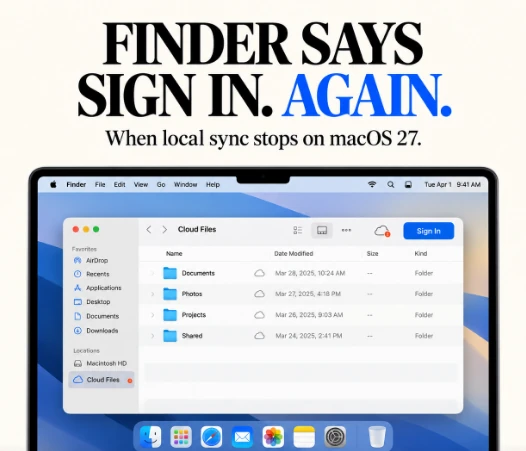
Your Drime folders are in Finder as usual. Then sync stops, a Sign In button appears where your files used to be, and signing in again helps only until it happens next time. At least one Mac user has reported exactly this with Drime on macOS 27.
The frightening question is whether your files are gone. Almost certainly not. But what is on your Mac right now depends on whether each file was online only or available offline. Before fixing the sign-in loop, check which files you actually have locally, and protect them.
Online only vs available offline
Drime, like Dropbox or OneDrive, can show every file in Finder without storing all of them on your Mac:
- Online only: Finder shows the file, but only a placeholder is on your Mac. The content downloads when you open it, which needs a connection and a working sign-in.
- Available offline: the full file is stored on your Mac’s disk and opens without a connection.
If the app is signed out, online-only files can’t be opened from the Mac, but they are still safe in your Drime account. Files you marked available offline should still be on your disk.
First, check your files in the browser
Sign in to Drime in a web browser and open the folders you care about. If your files are there, nothing has been deleted; the problem is only the connection between the Mac and your account. That takes the urgency out of everything that follows.
See what is actually stored on your Mac
- Look at the icons. In Finder, a cloud icon next to a file usually means online only. No cloud icon means it is stored locally.
- Use Get Info. Select a file and press Command-I. Compare the file’s size with the size on disk. A placeholder uses little or no space on disk; a local file uses roughly its full size.
- Check the folder size. Select the whole Drime folder and use Get Info. A few megabytes for a folder that holds gigabytes online means almost everything is online only.
If Drime appears under Locations in Finder’s sidebar, it is using the cloud storage integration built into macOS, and its local files live inside ~/Library/CloudStorage. Don’t move or rename anything in that folder by hand.
Protect your offline files before fixing anything
Some fixes, like signing out, removing the Drime location or reinstalling the app, can remove the local copies. Before you try any of them:
- Copy any files you need offline, especially files you edited while sync was stopped, to a normal folder such as Documents or an external drive.
- Make sure your Time Machine backup is current.
Edits made while sync is stopped exist only on your Mac until Drime uploads them. They are the files most at risk.
Fix the sign-in loop
- Update the Drime desktop app. After a major macOS release, sync apps often need an update to work with changes in Finder. Check Drime’s download page or the app’s own update option.
- Check that the extension is allowed. Open System Settings > General > Login Items & Extensions and look for Drime under File Providers or Extensions. Make sure it is switched on, and make sure Drime is allowed under Login Items so it starts with your Mac.
- Sign in from the app, not Finder. Quit Drime completely, open it again from Applications, and sign in from the app’s own window or menu bar icon.
- Check the date and time. Sign-in tokens fail if your Mac’s clock is wrong. In General > Date & Time, make sure the time is set automatically.
- Restart the Mac once after updating Drime, so macOS reloads the sync extension.
If it keeps happening
Contact Drime support and give them your macOS version, the Drime app version, what you see in Finder, and roughly how long you stay signed in. If you rely on offline access for work or travel, keep a copy of essential files outside the sync folder until a fix is confirmed.
The short version
A Sign In prompt in Finder doesn’t mean Drime deleted your files. Check them in the web app, then use Finder’s icons and Get Info to see which files are really stored on your Mac. Copy anything important out of the sync folder before signing out or reinstalling. Then update Drime, make sure its extension is enabled in Login Items & Extensions, and sign in from the app itself.